How to share access to your GoDaddy account without giving your password
November 28, 2020

Sharing access is one thing, that should only be done with people/companies you fully trust, but sharing passwords, unless absolutely necessary, should be avoided at all costs.
In general, we will NEVER ask you for your GoDaddy credentials, and certainly never in an unsolicited/impersonal manner.
Thankfully, GoDaddy has a mechanism for this exact situation.
They call it Delegate Access.
Essentially you can “Share” access to your GoDaddy account, with adjustable levels of access, without ever divulging your credentials.
Here is a quick guide on how to do just that.
Step 1: Log in to Godaddy
Go to Godaddy.com, and click Sign In in the top right corner.

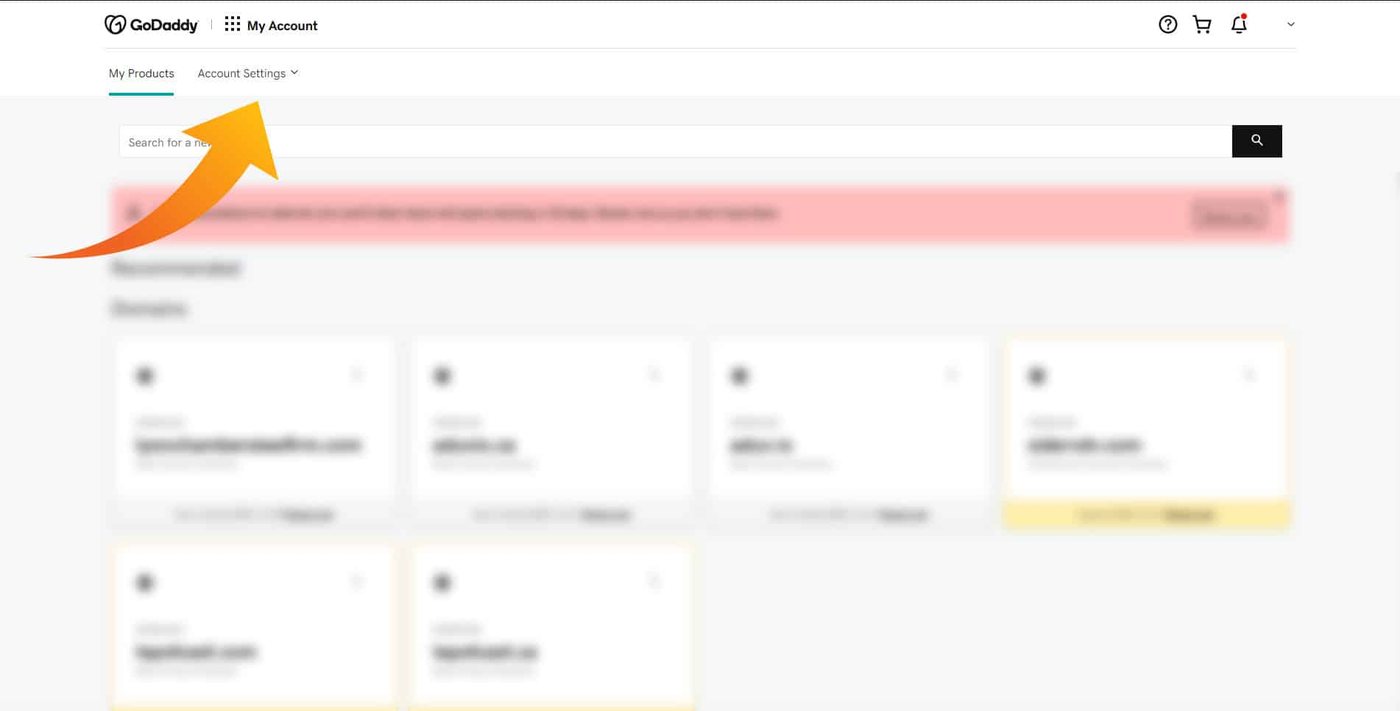
Step 2: Click on Account Settings
Click on Account Settings to reveal a drop down menu
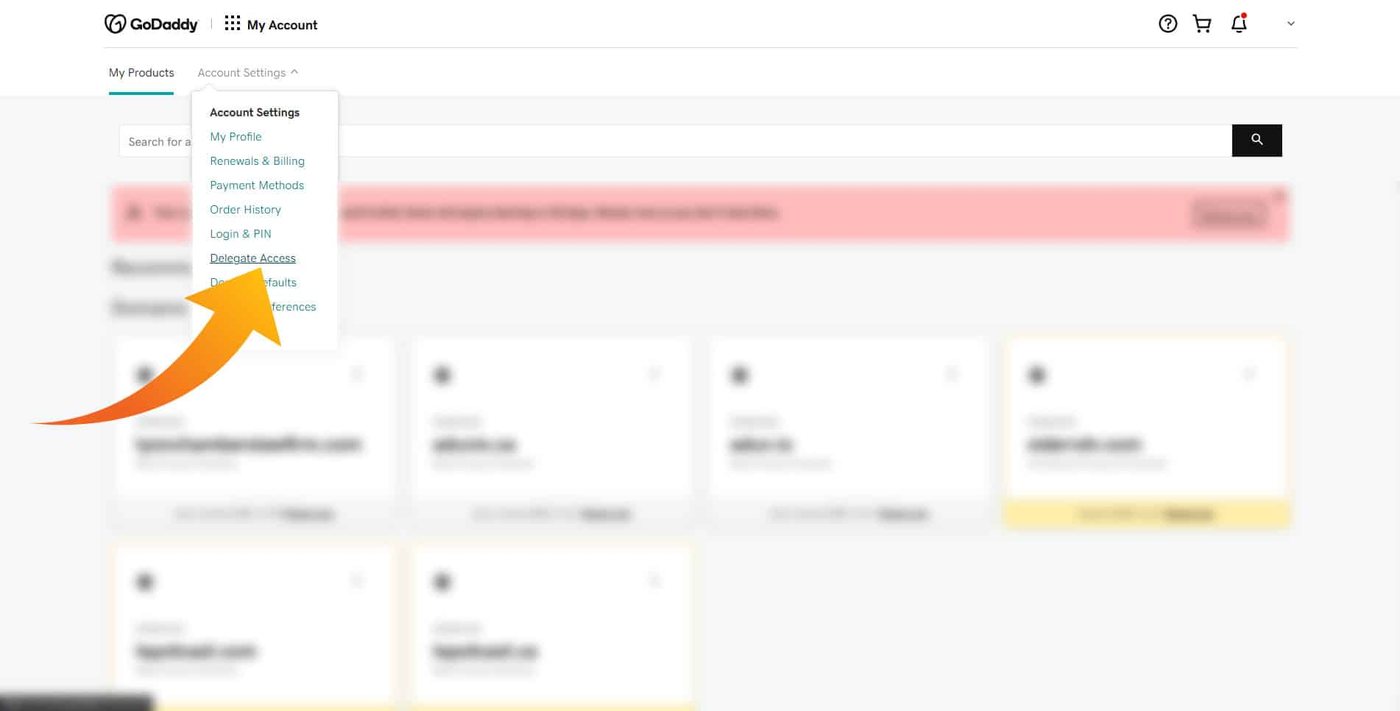
Step 3: Click on Delegate Access
Click on “Delegate Access” in the drop down that was revealed in the previous step.
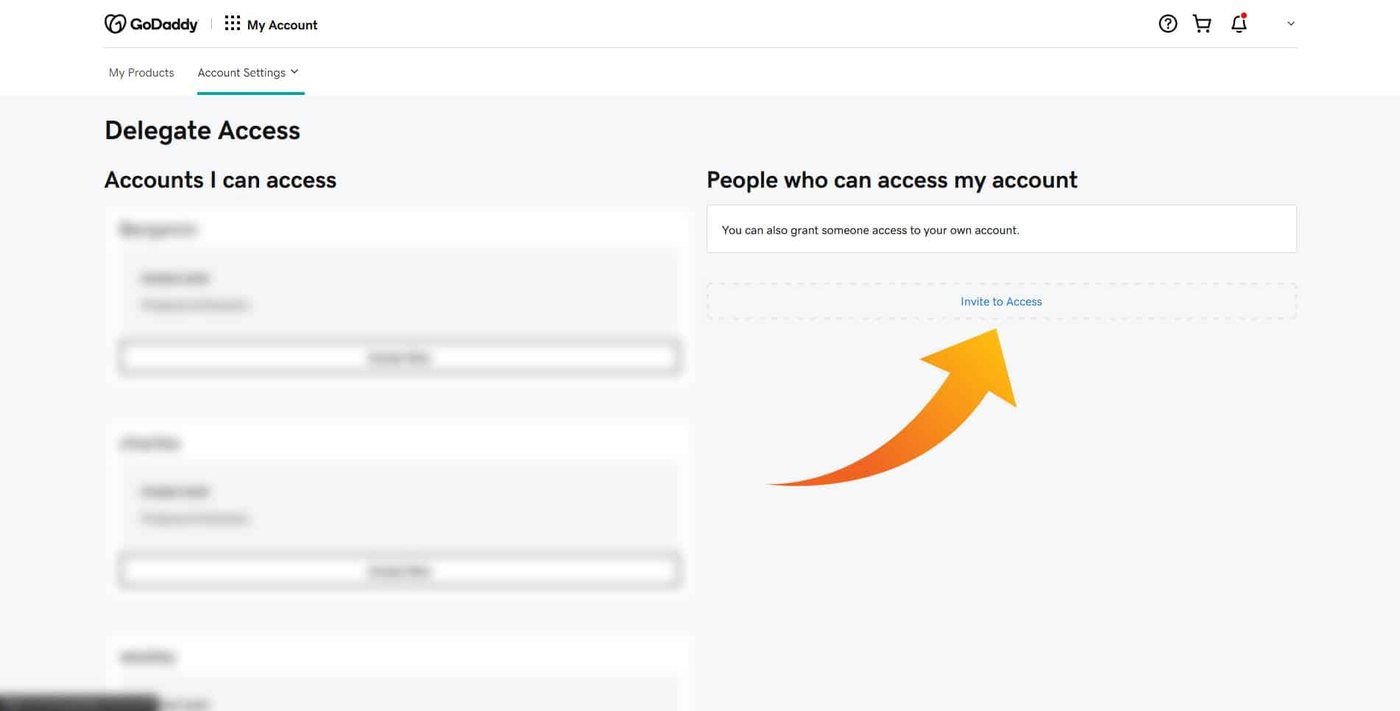
Step 4: Click on Invite to Access
On the delegate access page, there will be 2 sections. In the “People who can access my account” section, click on “Invite to access” to invite a new person to have access to your account.
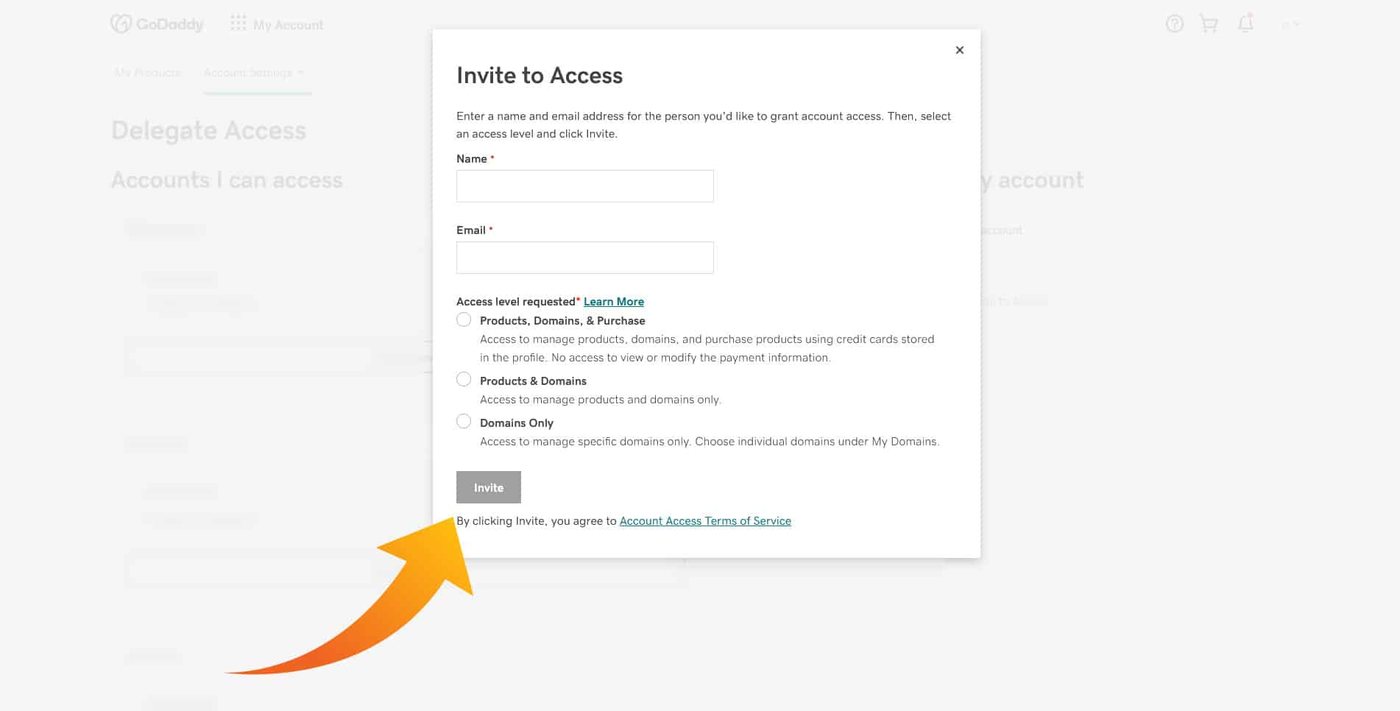
Step 5: Enter Information
Once you click the link in the previous step a pop-up will appear. In that pop-up, you will need to fill out a name for that person, as well as their e-mail address, and the level of access you wish to give them.
Step 6: Click on invite
Once you have filled out the information, and selected the permission level, simply click invite at the bottom, and you are done!



Need a hand with your website?
Tell us what you need and get a free, no obligation consultation.
Contact Us