How to change your temporary e-mail password
May 19, 2020

E-mail is vital to any organization. If your company has e-mail hosted with Progressive Web Solutions you will most likely receive a temporary password that looks like gibberish. This is obviously not very convenient. The first step you should take upon receiving your new e-mail account, is to reset the password to something you can remember and use.
Step 1: Navigate to webmail in your browser
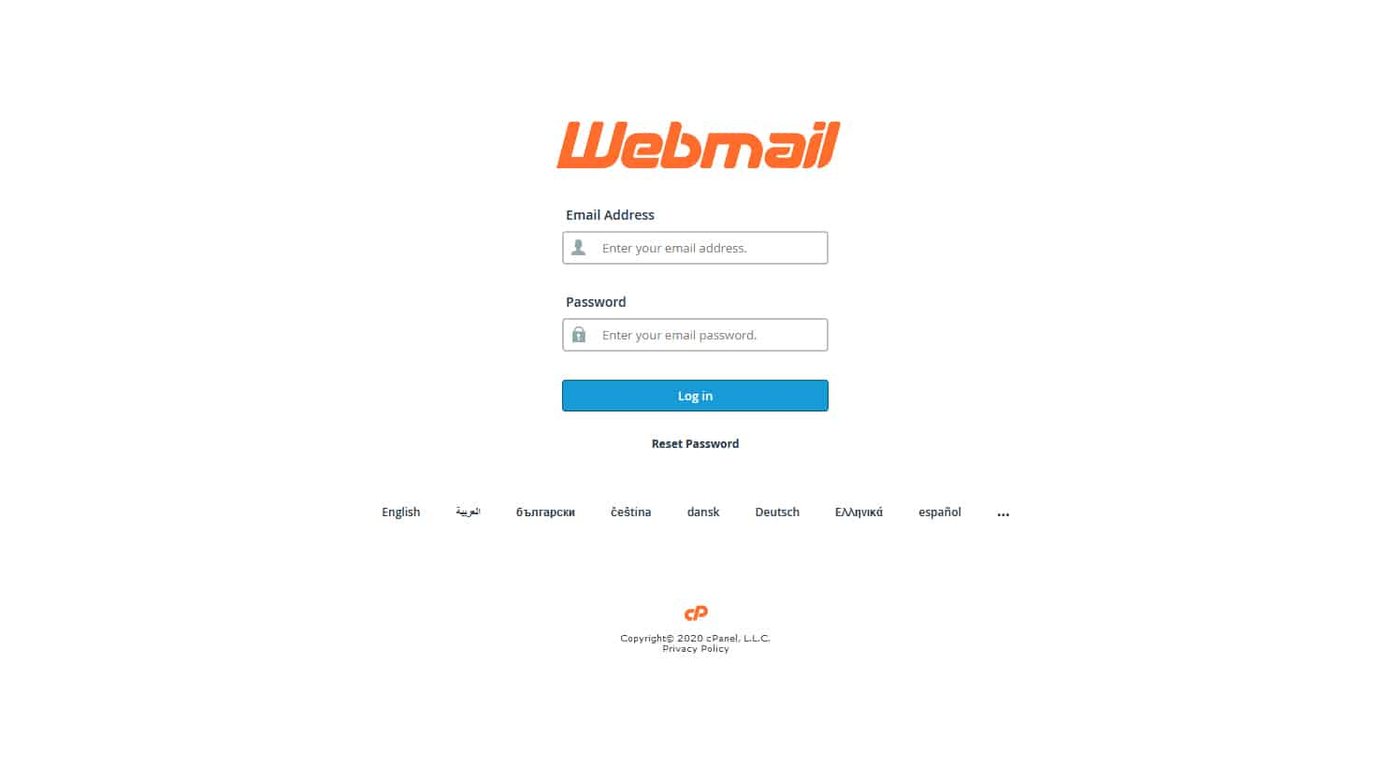
Along with your e-mail and password, you will have been given a web mail link. Follow that link in your browser. It should look like a log in screen similar to the image on the right.
Step 2: Log in using your e-mail and temporary password
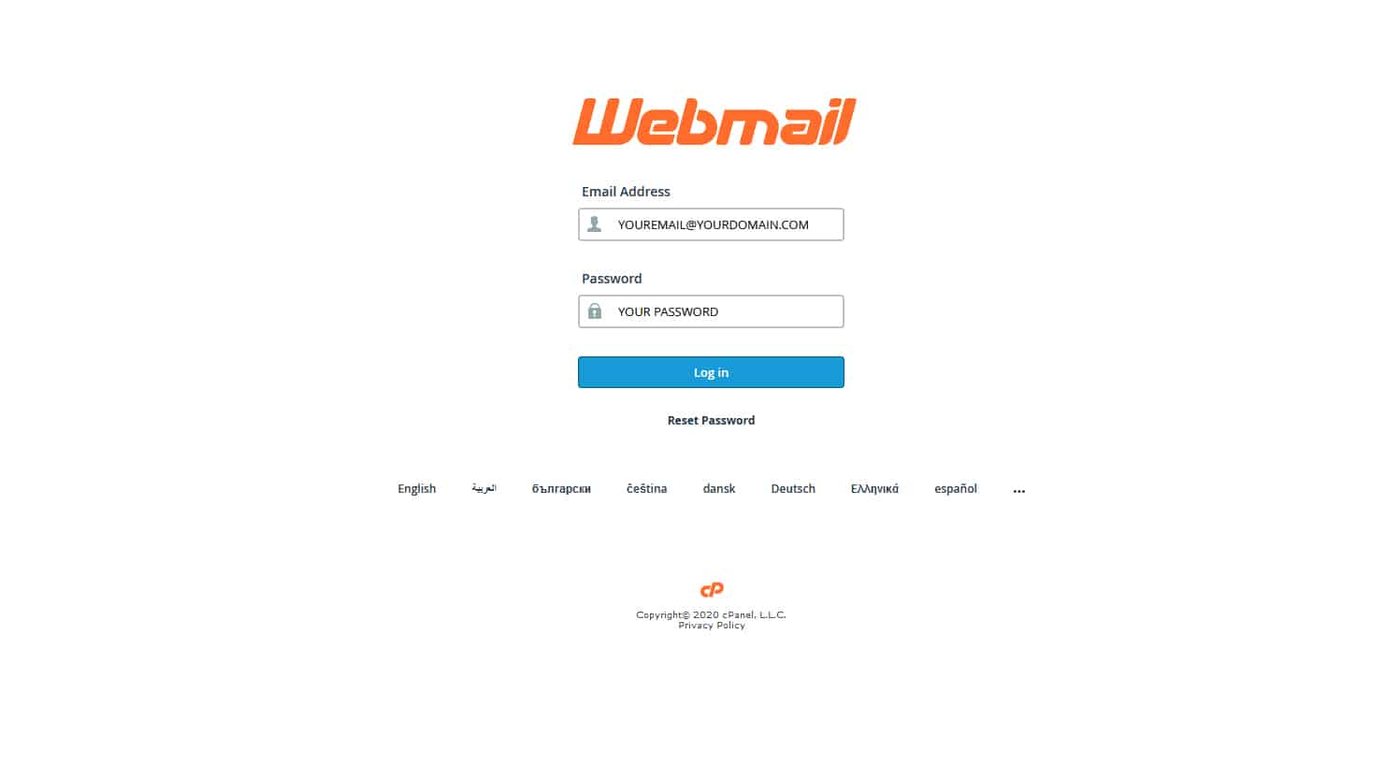
Once you have arrived at the web mail interface. Log in using your e-mail and temporary password that were provided to you.
Step 3: Select Passwords & Security from the menu
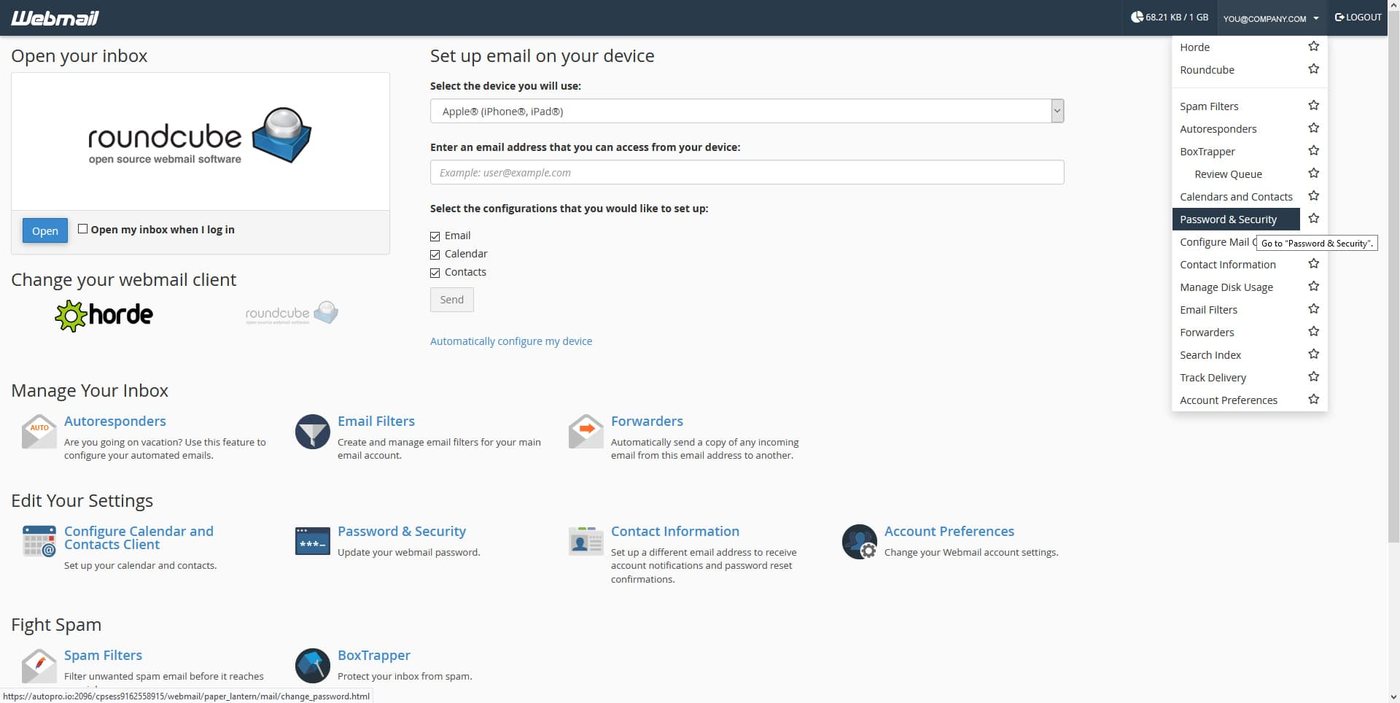
Upon successful login, you should see a screen similar to the one on the right. In the top right corner, you will see your e-mail address. Upon hovering your cursor over it, a menu should drop down. From this menu, click on Password & Security.
Step 4: Select a new password
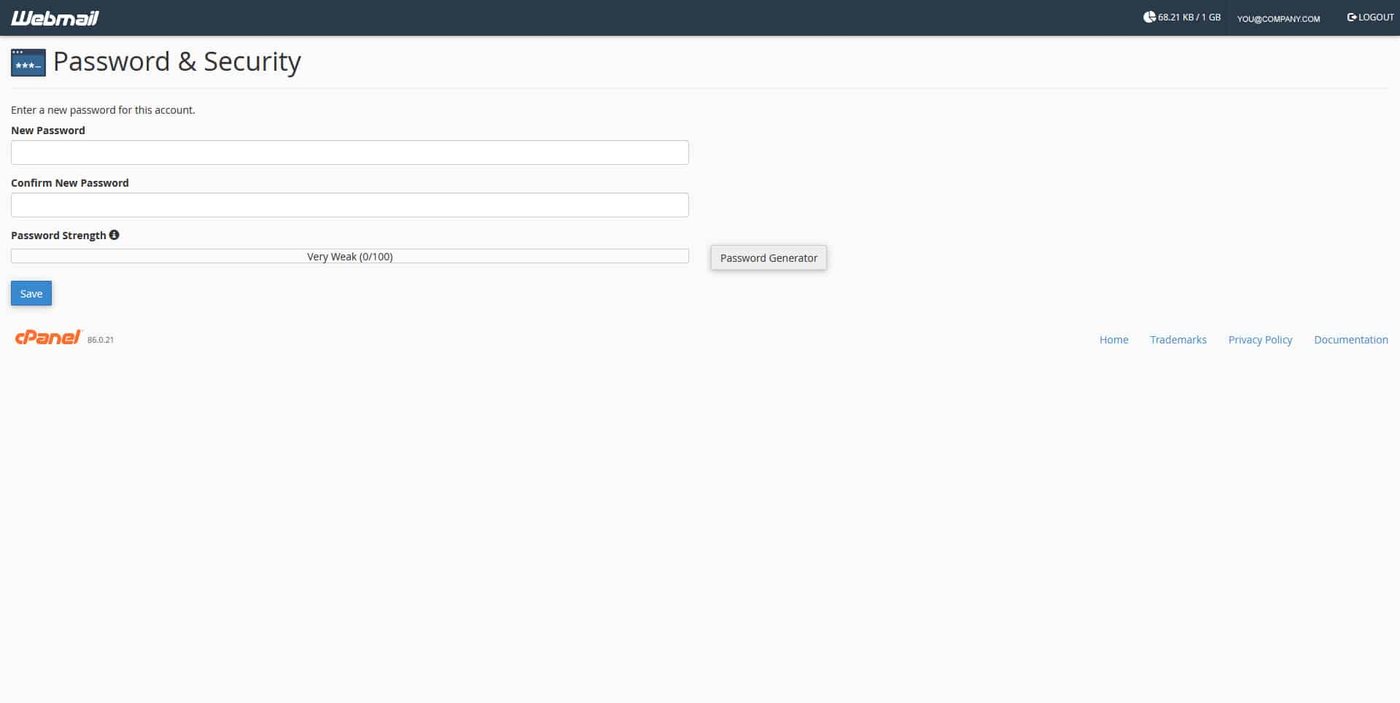
On this screen, simply enter your new desired password, and confirm it. Click save and you’re done!



Need a hand with your website?
Tell us what you need and get a free, no obligation consultation.
Contact Us